
CRM workflow automation that handles the routine steps on every record
CRM workflow automation in DigiPix Flow means a rule you write once: when a lead arrives, a deal changes stage or a client is created, check a few conditions and then do the routine work, such as adding a task, sending an email or SMS, tagging the lead or telling its owner. Every rule is a set of plain steps you fill in, saved as a draft until you publish it, and every run is recorded step by step so you can see what happened and retry what failed.
- Ten triggers across leads, deals, clients and segments
- Conditions, if / else branches and waits of up to a day
- Every run recorded, with failed steps you can retry


- triggers a workflow can start from
- 10
- kinds of step in the builder
- 9
- the longest a wait step holds a run
- 24 h
What can start a workflow
- New leadsCaptured from a form or ad, or added by hand
- Hot leadsA score crossing your Hot threshold
- Deal stagesA move, a win, a loss or a reopen
- ClientsA new client, or a handover accepted
- SegmentsA record joining a segment
- Run historyEach step's result, kept for review
The same five clicks, forty times a day
Every new website lead needs a call task, a tag for the product it asked about and a note for the manager. Your reps know the drill, but on a busy Monday the tag gets skipped, the task gets a vague title and the manager hears about the big enquiry on Thursday.
Rules kept in one person's head
Someone once decided that every lost deal above ₹2 lakh gets a call from the sales head. Nobody wrote it down. When that person goes on leave, the rule goes with them, and nobody notices until a customer asks why no one called.
Automation nobody can check
A rule fires in some tool, something happens or does not, and when a customer says they never got the welcome email there is no way to see whether the rule ran, which step broke, or whether running it again will send everything twice.
Start from the moments that already matter in your sales process
Each workflow starts from one trigger. Leads can start a workflow when they are created, when any field changes or when their score crosses your Hot threshold. Deals start one when they move stage, are won, are lost or are reopened. A new client and an accepted handover are triggers too, and so is a record joining a static segment, which lets a list your marketing team builds kick off the follow-up.
- Lead created, lead updated and lead becomes Hot
- Deal stage changed, won, lost or reopened
- Client created and handover accepted
- A record added to a segment

Conditions that keep a workflow to the records it is meant for
A trigger on its own is broad, so add conditions. Check the lead's source, the form it came through, its status, score, owner or tags, or whether it sits in a segment. Each condition reads as a sentence, such as Source is Google Ads or Score is more than 70, and you choose whether all of them must match or any one will do. Records that do not match are left alone.
- Source, form, status, score, owner, tag and segment
- Is, is not, contains, more than, less than, is empty
- Match all conditions, or any one of them
- Written as plain sentences, not code
Steps that do the routine work your team keeps forgetting
After the conditions come the steps, in the order you list them. Create a task for the record's owner with the title you choose, add an existing tag to a lead, write a note on the record's timeline, or send the owner an in-app notification with your message. An unowned lead can be handed to your assignment rules, so the same routing your team already trusts decides who gets it.
- A task for the owner, titled the way you write it
- A tag from your workspace list added to the lead
- A note written on the record's timeline
- Assignment rules run on a lead with no owner

Split on a condition, or pause before the next step
An if / else step checks a condition partway through and runs one list of steps when it matches and another when it does not, so a Hot lead can get a call task while a cooler one gets an email. A wait step pauses the run for minutes or hours, up to a full day, before the next step. Longer journeys of several days belong in a sequence, which is built for exactly that.
- If / else on the same fields as conditions
- One set of steps for a match, another for the rest
- Waits of minutes or hours, up to 24 hours
- Multi-day follow-up handed to sequences

Email and SMS from a workflow, with the same checks as a person's send
A workflow can email the record from one of your templates or text its phone number. Automated messages get no shortcut: an email is held back if the address is on your do-not-contact list or the person has opted out, and it waits out your quiet hours. An SMS is treated as a service message unless you mark it as marketing, which then needs the person's recorded SMS consent, and DLT rules still apply.
- Emails drawn from your saved templates
- Do-not-contact and opt-outs checked on every send
- Quiet hours respected for automated email
- Marketing SMS only with recorded SMS consent
Every run recorded, and a failed one put right with a retry
Each time a workflow fires, a run is recorded with every step and its result: succeeded, failed or skipped, with the reason a step failed. Filter runs by workflow, status or date. When a run fails, its author is told, or the workspace admins if the author has gone. Retry runs only the steps that did not finish, so the task created the first time is not created again, and the retry is written to the audit trail with your reason.
- Runs filtered by workflow, status and date
- Each step's result and the reason it failed
- A notice to the author when a run fails
- Retry repeats only the unfinished steps


From a trigger to a checked run, in five steps
- STEP 01
Pick a trigger
Choose the lead, deal, client or segment event the workflow starts from, or begin from a template.
- STEP 02
Add conditions
Narrow it to the records that matter, matching all of your conditions or any one of them.
- STEP 03
List the steps
Tasks, tags, notes, notices, assignment, email, SMS, waits and if / else, in the order they should run.
- STEP 04
Check and publish
The draft is checked before it is published, and the published version runs until you publish again.
- STEP 05
Watch the runs
Review each run step by step, and retry one that failed without repeating what worked.
Workflows vs checklists and reminders by hand
| What it covers | Checklists and reminders by hand |  DigiPix Flow DigiPix Flow |
|---|---|---|
| What happens to a new lead | Whatever the rep remembers to do | The same tasks, tags and notes every time |
| Where the rule is written | In a manager's head or a WhatsApp message | In a named workflow anyone with access can read |
| Changing the rule | Tell everyone and hope it sticks | Edit a draft, check it, then publish |
| Messages to customers | Sent from personal phones with no consent check | Email and SMS checked for opt-outs and consent |
| When something goes wrong | Nobody knows which step was missed | A run record showing which step failed and why |
| Putting it right | Redo everything and risk sending twice | Retry only the steps that did not finish |
| Who changed the rule | No record at all | Publishes, pauses and retries in the audit trail |
Where workflow leads come from and messages go
Leads from Meta lead ads and your website forms can start a workflow the moment they are created, workflow emails use your email sending setup, SMS steps use your DLT templates, and outbound webhooks tell your other systems about lead and deal events.
Workflow automation questions, answered
What is CRM workflow automation?
It is a rule that runs on its own inside your CRM: when something happens to a record, check whether it meets your conditions, then carry out a list of steps. In DigiPix Flow a workflow has one trigger, optional conditions and an ordered list of steps such as creating a task, sending an email or SMS, tagging a lead or notifying its owner.
Do I need to write code to build a workflow?
No. You pick the trigger from a list, write each condition as a field, a comparison and a value, and add steps from a menu, filling in a title, a template or a message. The builder checks the draft before you publish it and refuses a step it cannot run, so a broken workflow never reaches your records.
Can I use WhatsApp in a workflow?
Not from a workflow. Workflow steps send email and SMS. WhatsApp follow-up is handled by sequences, which can mix email, WhatsApp and SMS steps over several days, or by your team writing from the record. A workflow can still create the task that reminds a rep to message the lead.
How long can a wait step pause a workflow?
Up to 24 hours, set in minutes, hours or days with a one-day ceiling. Workflows are meant to react to an event and finish the same day. For follow-up spread over several days, enrol the lead in a sequence, where each step waits the hours you set before it sends.
What happens if I edit a workflow that is already running?
Your edits go into a draft. The published version keeps running on new events until you publish the draft, and then the new version takes over. You can pause a workflow at any time, resume it later, duplicate it as the starting point for another, or delete it when it is no longer needed.
Will a workflow run twice for the same event?
No. Each trigger event starts a workflow once, and a manual run started twice with the same request is treated as one. A guard also stops workflows from setting each other off in an endless loop, for example one that updates a lead and another that fires whenever a lead is updated.
What happens when a step fails?
The run is marked failed or partly done, the failed step keeps its reason, and the workflow's author is notified, or your admins if the author has left. When the cause is fixed, retry the run: only the steps that did not finish run again, so a task created the first time is not created twice.
Can I test a workflow on one record before relying on it?
Yes. Once a workflow is active you can run it on a record you choose, such as a test lead, and then open the run to see each step's result. Running a workflow by hand is recorded in the audit trail with the person who started it.
Who can build, pause or retry workflows?
Seeing workflows, building them and retrying failed runs are separate permissions, so a manager can review runs without being able to change the rules. Publishing, pausing, deleting, manual runs and retries are all written to the audit trail with the person who did them.
Something we haven't covered? Talk to an expert
Keep exploring
Visit the blog- FEATURESSales automation softwareWorkflows, assignment rules, lead scoring and sequences on one page.Explore features
- FEATURESSequences and campaignsEmail, WhatsApp and SMS steps spread over days, ending on a reply.Explore the feature
- FEATURESLead distributionShare new leads by your rules: fixed owner, round robin, weighted or least loaded.Explore the feature
- FEATURESTasks for your sales teamReminders, snoozes and repeats for your team's to-dos.Explore the feature
- FEATURESTeam notificationsWho hears about what: each person chooses email, the bell or a digest, with quiet hours.Explore the feature
 GUIDEHow to assign leads to sales repsRules, round robin and response times, explained step by step.Read the guide
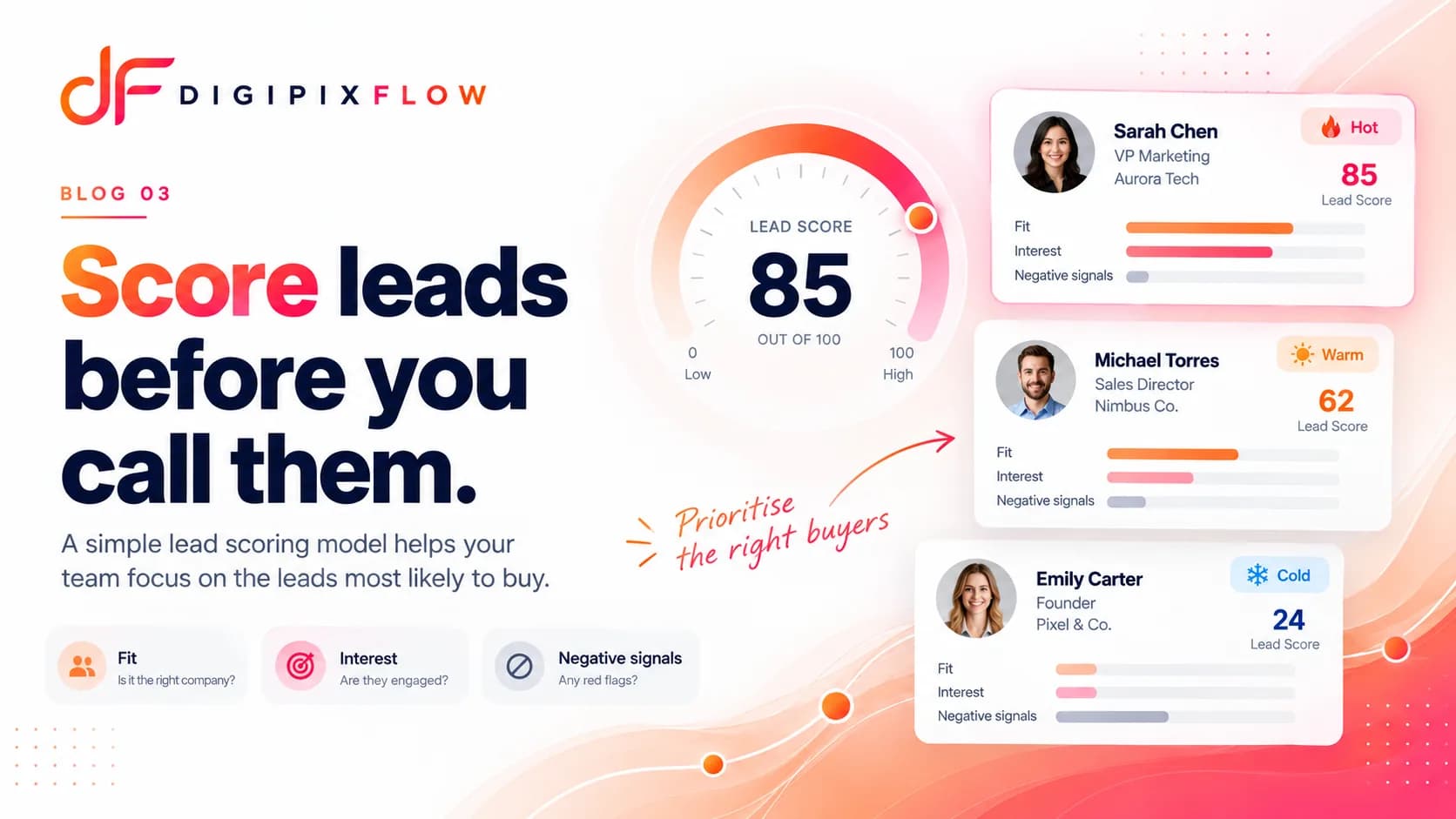 GUIDELead Scoring for Small Businesses: A Simple Model You Can Set Up This WeekBuild a practical lead scoring model in a week: pick five to eight signals, assign points, add negative scoring, set hot and warm thresholds and test it against your past deals.Read the guide

Write the rule once, and let it run
Talk to an expert. Bring one routine your team repeats every day, and see it built as a workflow, published and checked run by run.
- A real person, not a bot
- Bring a routine you repeat
- See it built and run